Restoring your Previous App Purchases
If you have not signed into your Managed AppleID yet (.hbuhsd.edu), please skip to step 3.
Step 1: Opening the Settings App.
The Settings app on the iPad contains the menus used to change how your tablet works. It also lets you manage your Apple ID and App Store subscriptions. Click on the Settings icon on your home screen.

Step 2: Signing out of your AppleID
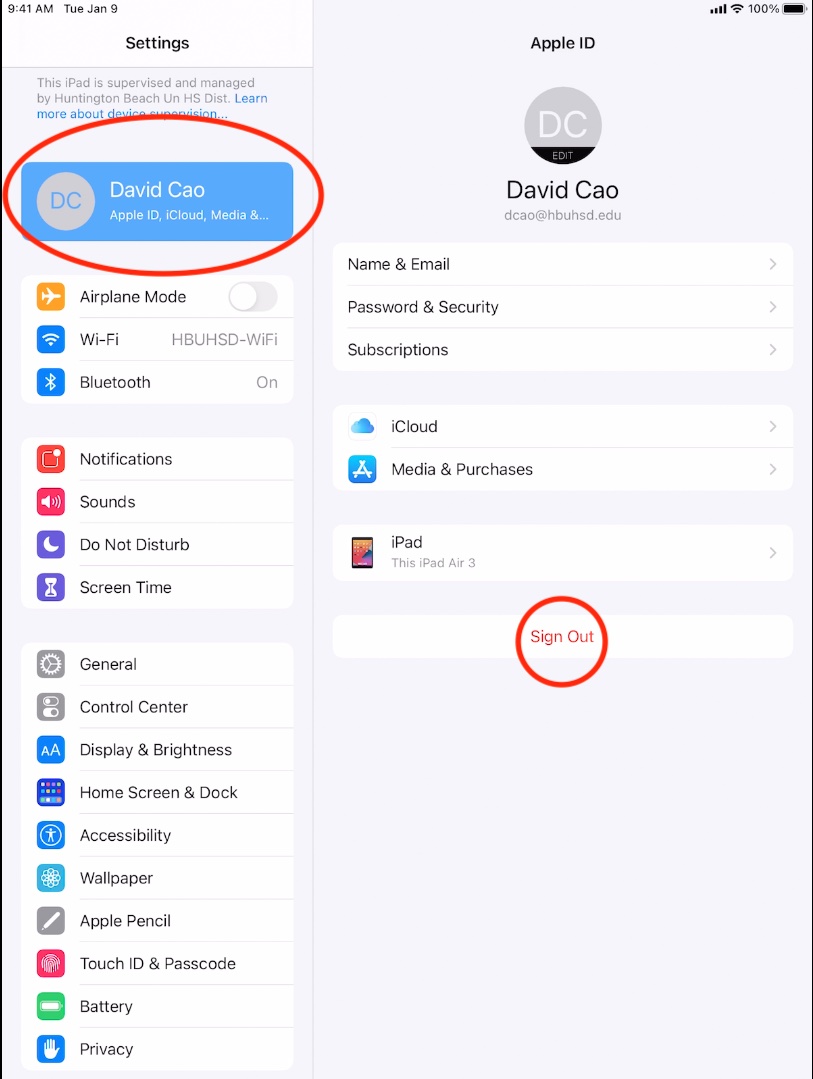
If you have signed into your Educational AppleID using your Microsoft account, you will need to sign out. You can do so by clicking on the top box in the left panel and then clicking the red "Sign Out" button.
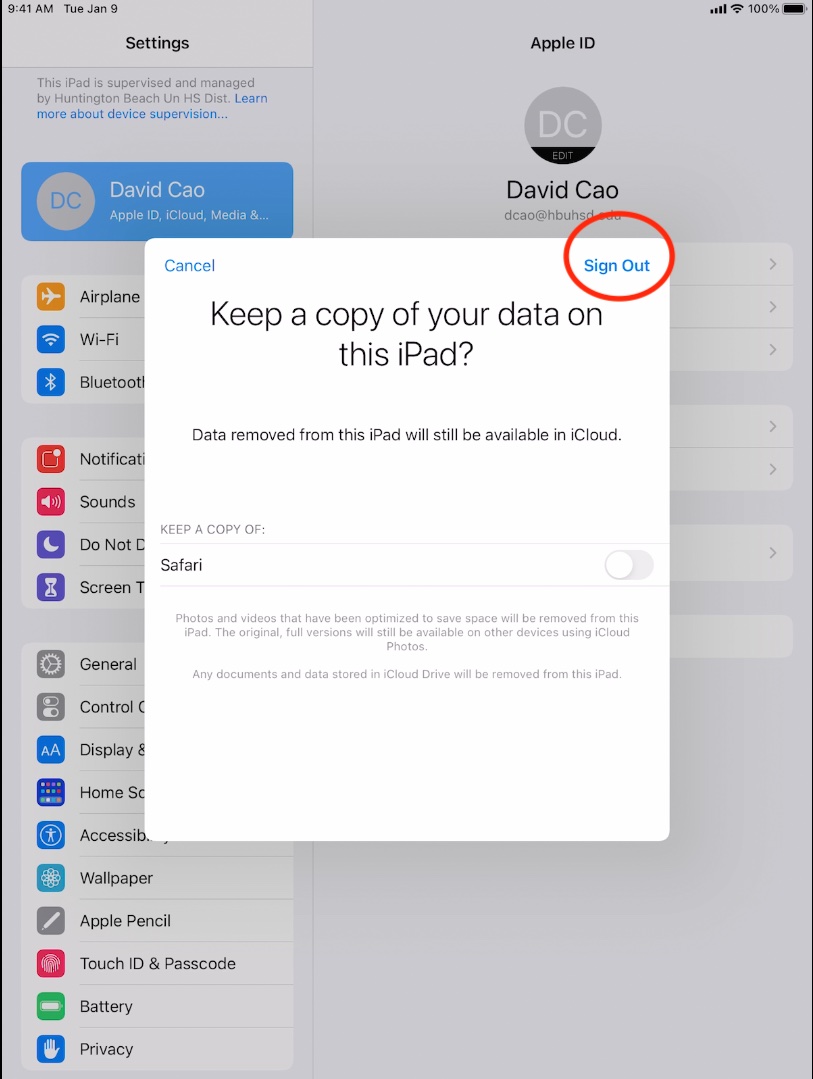
After signing out, it is going to ask you to keep a copy of your data on this iPad. This will vary and you can set whatever settings you want. Click on the "Sign Out" button afterwards.
Step 3: Opening the App Store
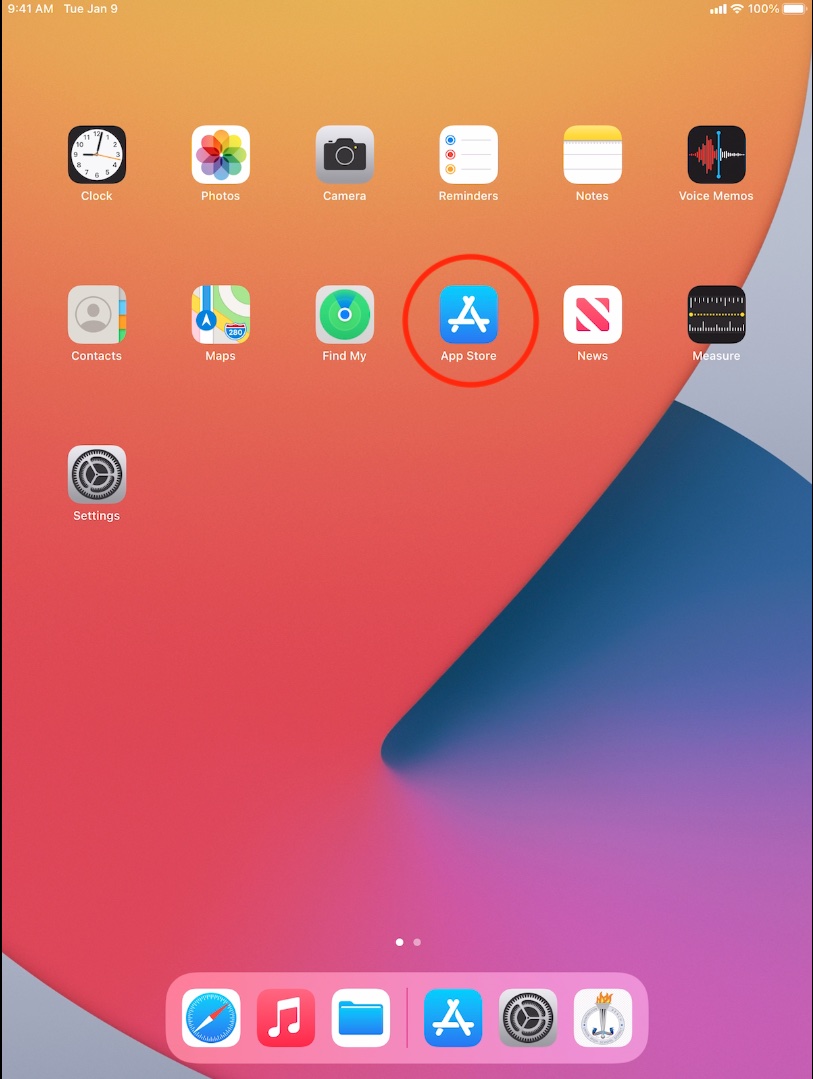
Open the App Store located on your home screen.
If you don't see the App Store, go to Settings < General < Reset < Reset Home Screen Layout.
Step 4: Log in with your Previous Account
You can redownload items from the App Store, Book Store, and iTunes Store without repurchasing them. To redownload them:
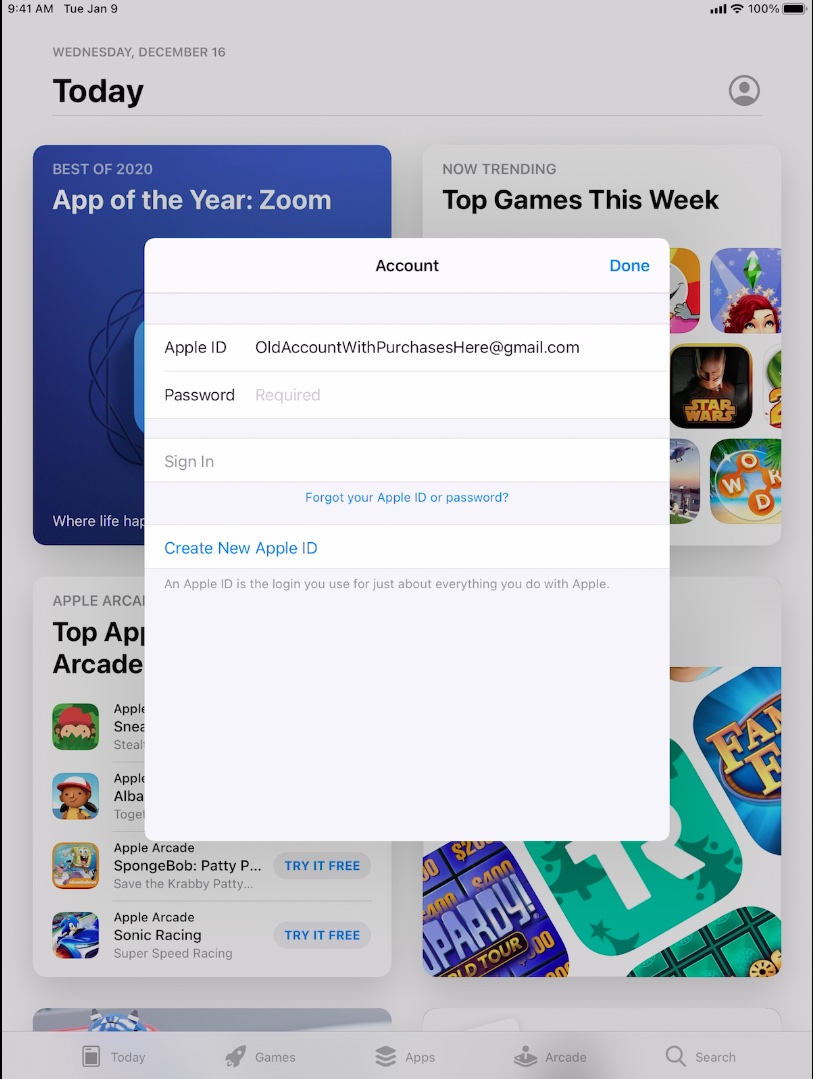
Step 1: Tap the sign-in button or your photo at the top of the screen.
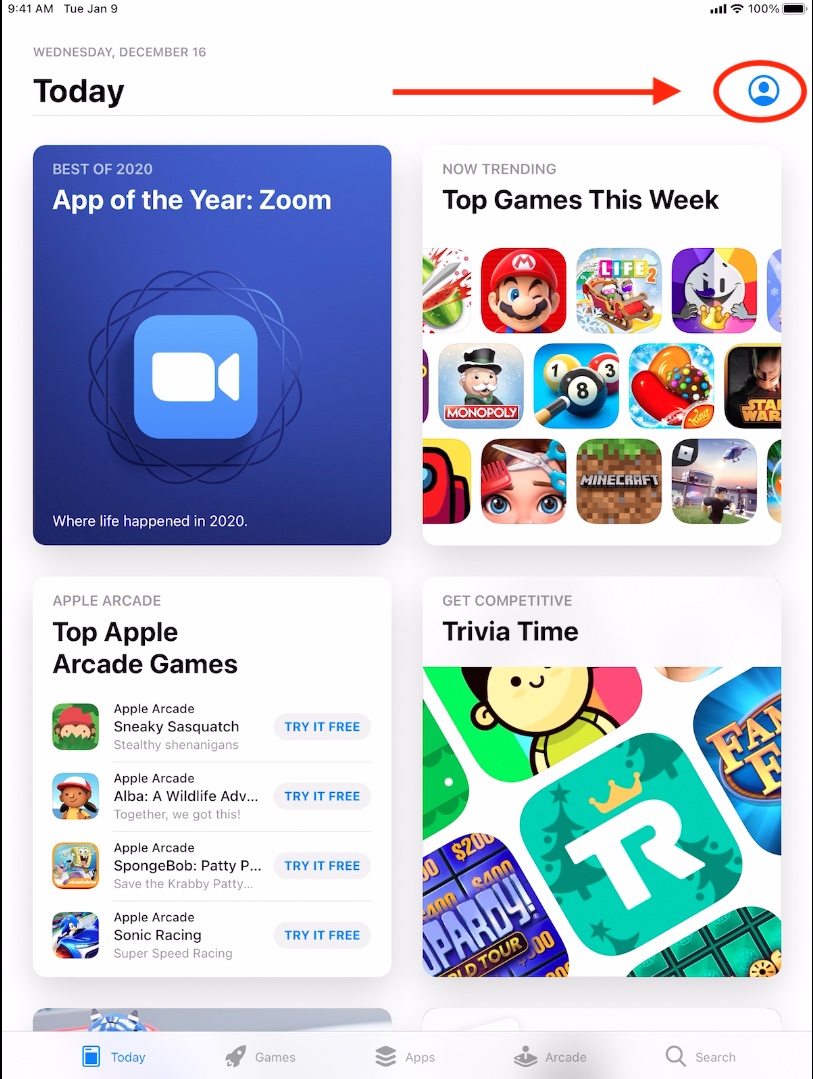
Step 2: Sign in with the appropriate account.
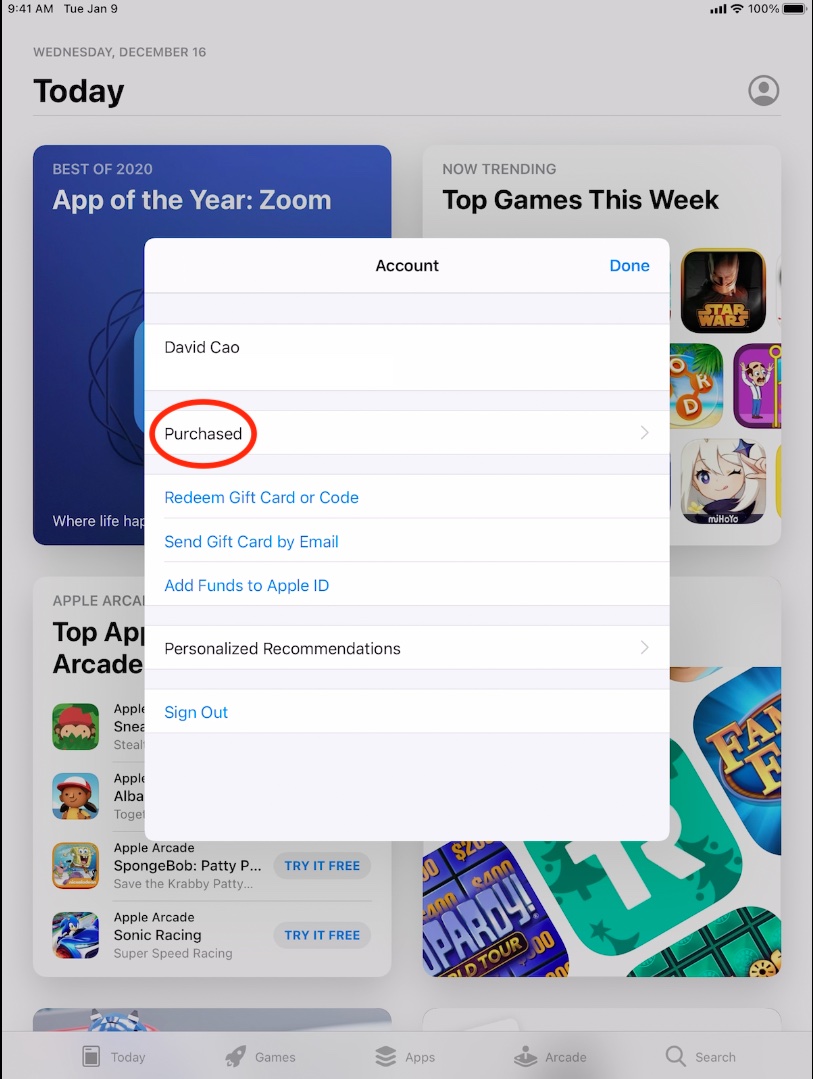
Step 3: Tap Purchased.
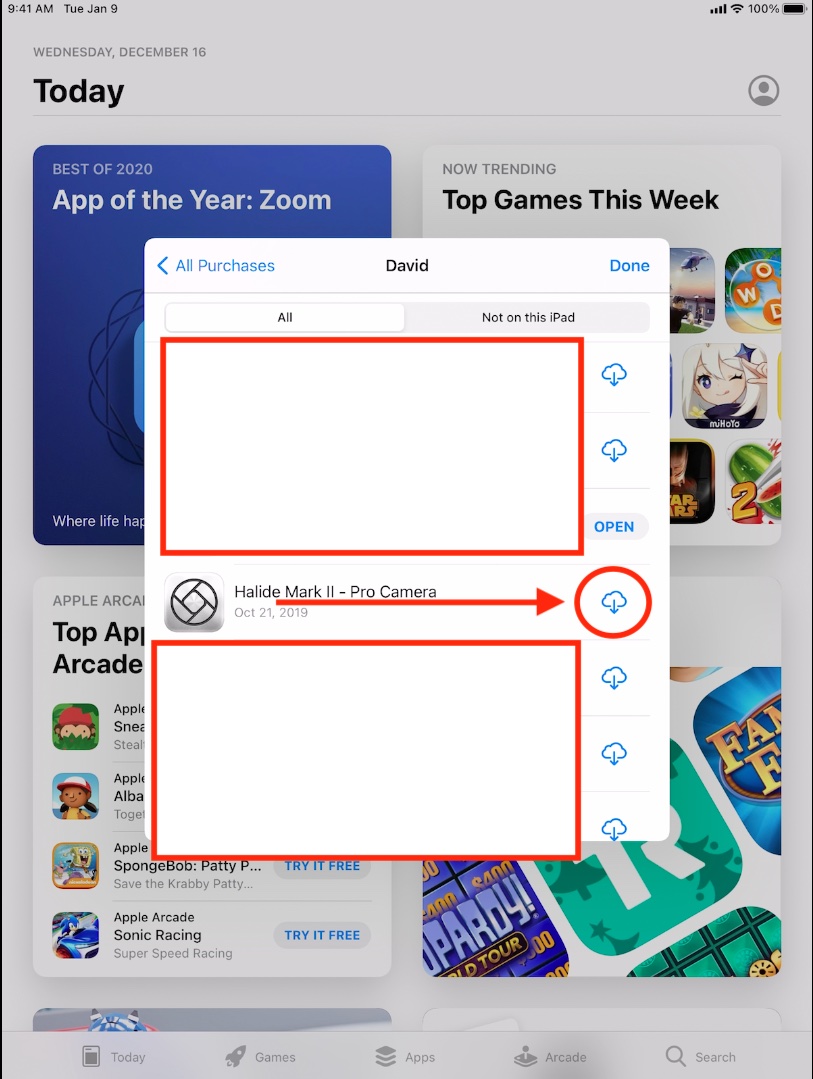
Step 4: Find the app that you want to download, then tap the download button.
An example would be scrolling down to find Notability and then downloading click on the download button.
You can grab all of the apps that you like from here. When you are done, you can simply sign out using Step 1 and logging in with your @hbuhsd.edu email and Microsoft Password to take advantage of the free 200GB iCloud storage. For help on this, you can refer to this.